




Installation & Setup
How to Install the Google Maps Scraper Extension Manually via .ZIP (Illustrated)
Written by The Axio Leads team 5 min read
In addition to direct web store installation, users can install the Axio Leads extension manually by sideloading the unpacked ZIP archive. Sideloading guarantees that you always run the latest feature releases without waiting for web store review queues, allows unmetered local scraping performance, and ensures 100% data privacy with all operations executing directly in your local browser sandbox. Here is the complete 5-step walkthrough with HD screenshots.
Key takeaways
- The axio-leads.zip installation package is lightweight (~1.2 MB), strictly Manifest V3 compliant, and 100% clean verified code.
- Requires only toggling Developer mode on any Chromium-based browser (Chrome, Edge, Brave, Coc Coc).
- Always extract the ZIP archive first and select the primary directory containing manifest.json directly.
- Once loaded, the extension automatically attaches an interactive Radar scraping toolbar whenever you navigate to google.com/maps.
On this page
- Step 1: Download axio-leads.zip and extract the folder
- Step 2: Navigate to chrome://extensions in your browser
- Step 3: Toggle Developer mode switch to ON
- Step 4: Click "Load unpacked" and select the axio-leads directory
- Step 5: Pin the extension and start scraping on Google Maps
- Troubleshooting Common Sideloading Issues
Step 1: Download axio-leads.zip and extract the folder
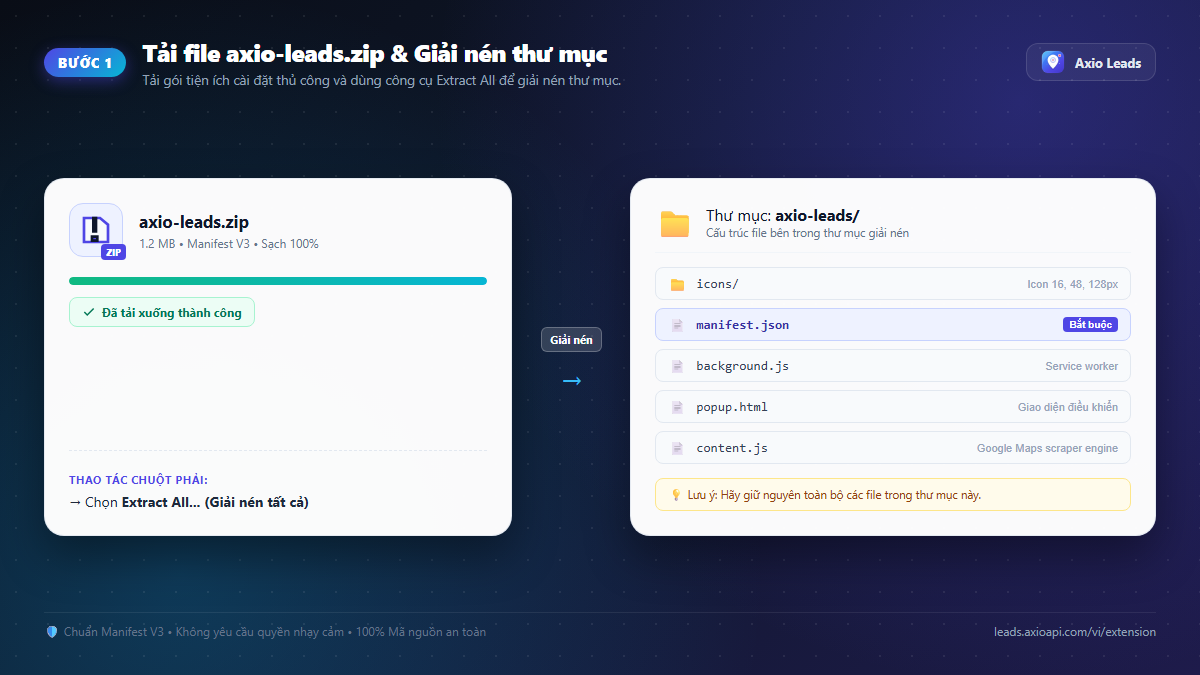
First, download the official extension package named axio-leads.zip. You can obtain it directly from the Axio Leads Extension Page or the direct download button below.
Once the archive finishes downloading to your Downloads folder, right-click axio-leads.zip → select "Extract All..." (or use your preferred archive tool) to extract it into a normal directory.
Step 2: Navigate to chrome://extensions in your browser
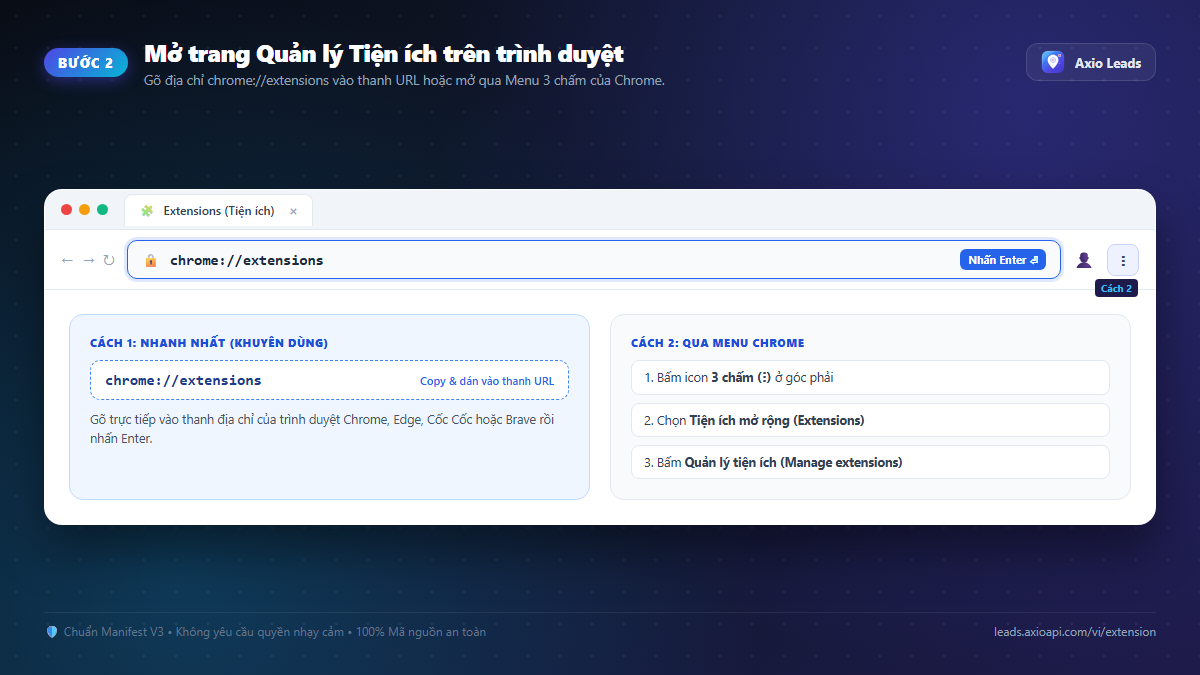
Open a new tab in Google Chrome (or Edge, Coc Coc, Brave). In the address bar (URL bar), type: chrome://extensions and press Enter.
Alternatively, you can access this page by clicking the 3-dots menu at the top-right corner of Chrome → select Extensions → click Manage Extensions.
- On Microsoft Edge: Navigate to
edge://extensions - On Coc Coc: Navigate to
coccoc://extensions - On Brave Browser: Navigate to
brave://extensions
Start Building Your Targeted B2B Lead List Today
Preview verified Google Maps leads for free. Auto-extract messaging numbers, filter landlines, and export to Excel/Sheets in 15 seconds.
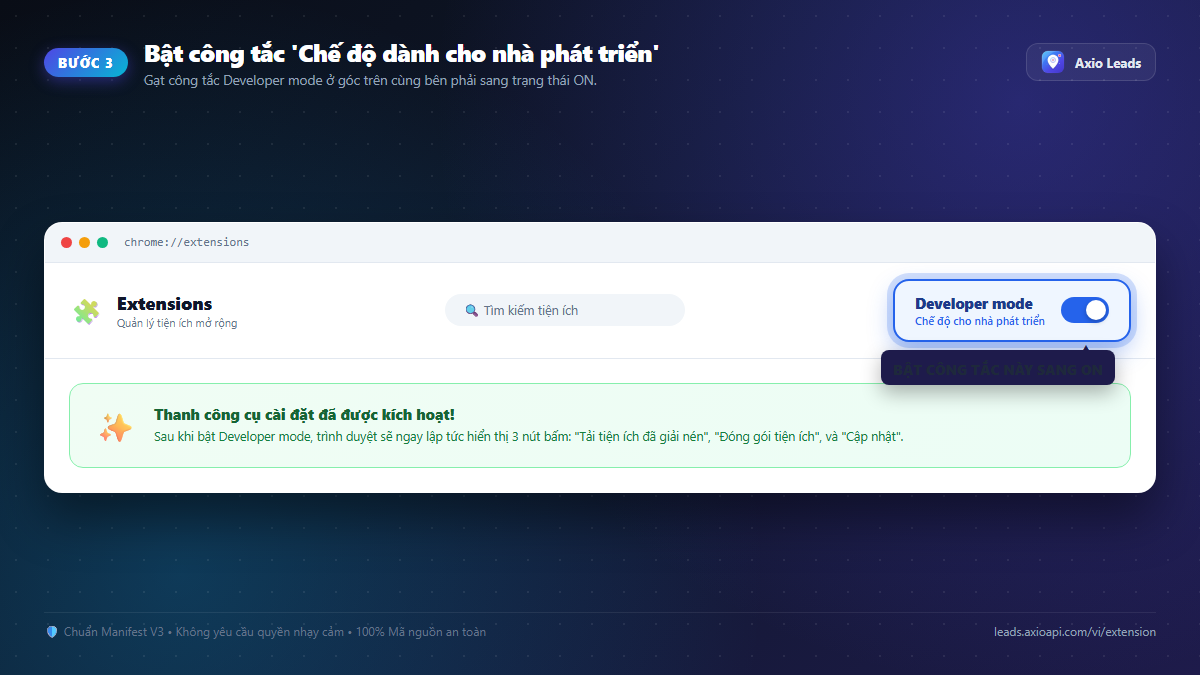
Step 3: Toggle Developer mode switch to ON
Look at the top-right corner of the Extensions management screen to locate the Developer mode toggle switch.
By default, this switch is in the Off (grey) position. Click it to turn it ON (blue). Immediately, a secondary action toolbar with three buttons will appear at the top-left: "Load unpacked", "Pack extension", and "Update".
Step 4: Click "Load unpacked" and select the axio-leads directory
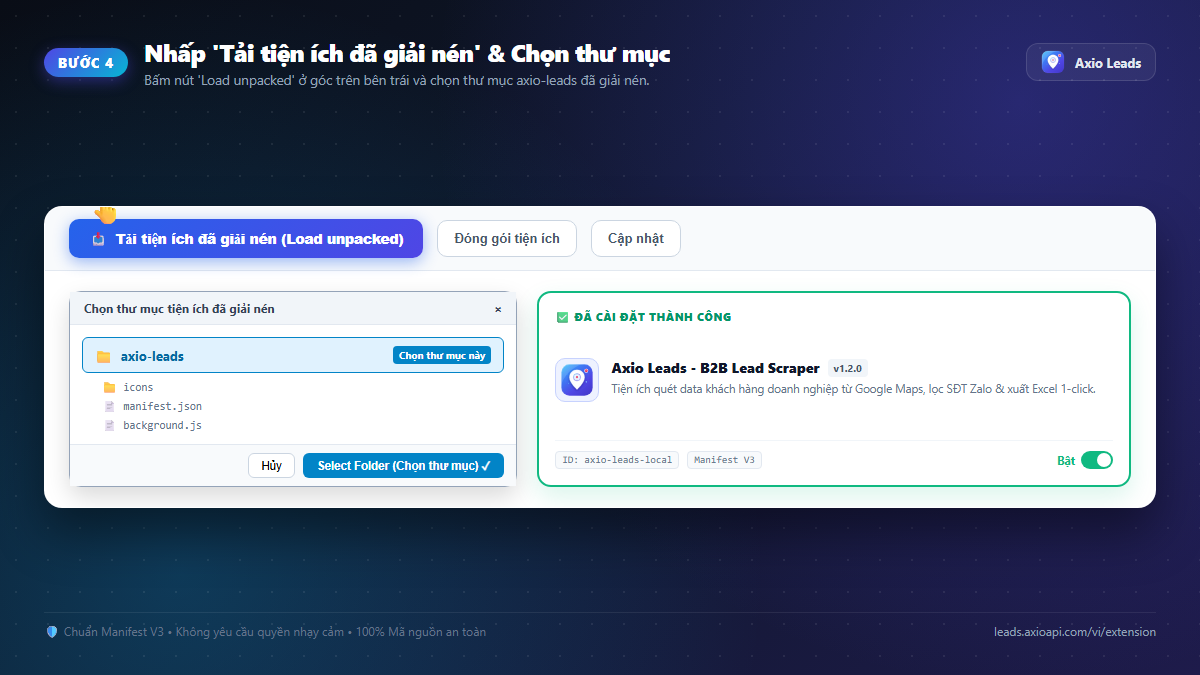
Click the "Load unpacked" button located in the top-left toolbar.
Your operating system's native folder picker window will open. Browse to the extracted axio-leads directory from Step 1 → click on it → click "Select Folder".
The "Axio Leads - B2B Lead Scraper" extension card with its green radar logo will instantly appear in your active extensions list. Its toggle will automatically be set to Enabled.
Step 5: Pin the extension and start scraping on Google Maps
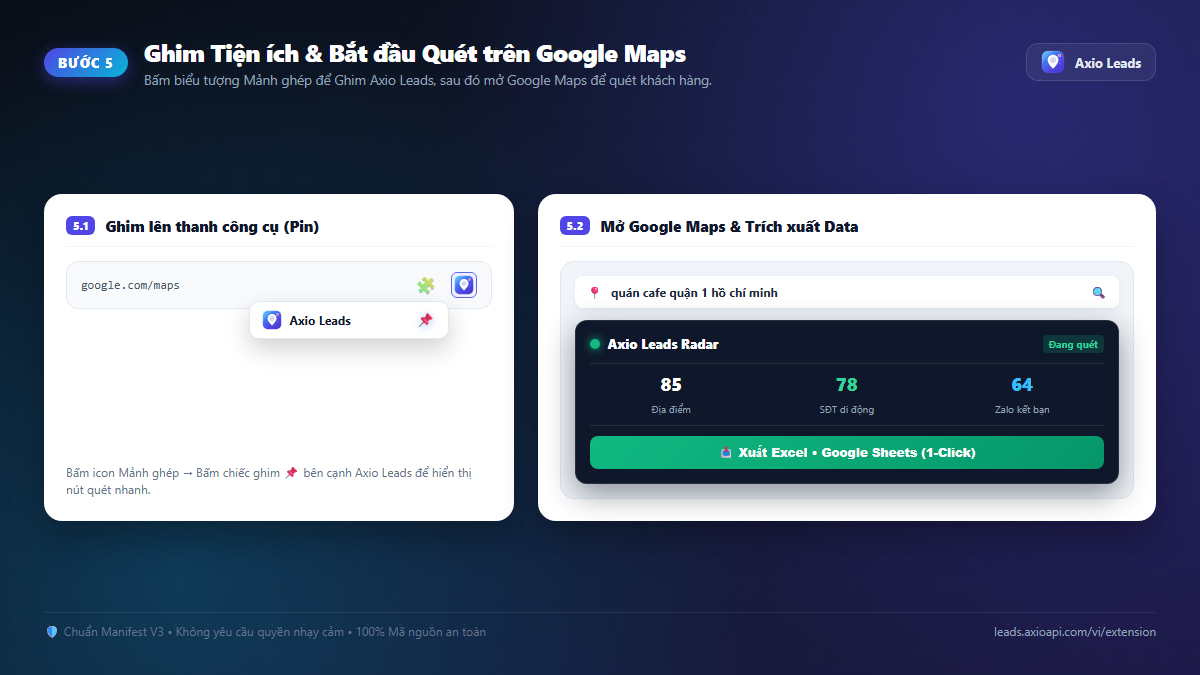
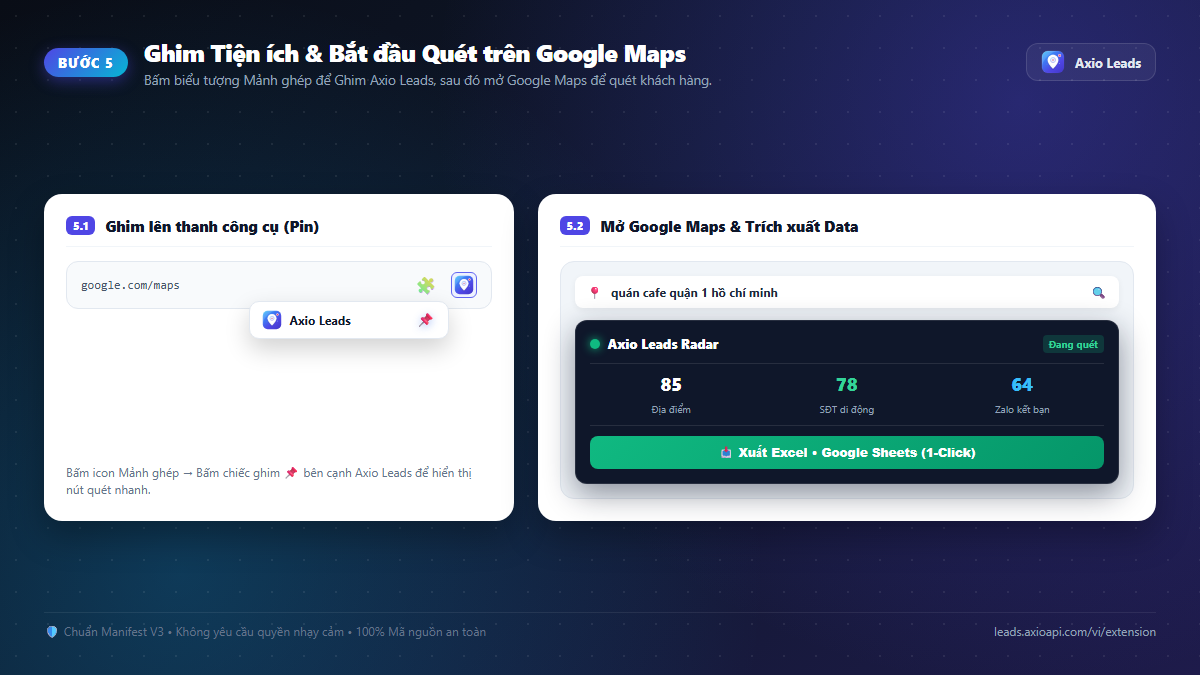
For fast daily access, click the Puzzle icon (🧩 Extensions) on your browser's top navigation bar, locate Axio Leads, and click the Pin (📌) icon so that the green radar logo remains permanently visible next to your address bar.
Now, open a new tab and visit google.com/maps. Search for any business type in any city or neighborhood (e.g. "Dentists in Dallas" or "Marketing Agencies in London"). The Axio Leads floating Radar scanner will automatically appear on the viewport, allowing you to scrape contact details, filter mobile numbers, and export cleanly formatted Excel spreadsheets in 1 click!
Troubleshooting Common Sideloading Issues
If you encounter an issue during manual installation, check these quick solutions:
- Error: "Manifest file is missing or unreadable": This occurs if you select an outer parent folder instead of the folder containing
manifest.json. Open the folder in file explorer and ensuremanifest.jsonis located at the root level of the folder you select. - "Load unpacked" button is missing: Double-check the top-right corner of
chrome://extensionsto confirm that the Developer mode switch is toggled ON (blue). - How to update to a newer version: When a new update is released, simply download the new zip file, extract and overwrite the existing files in your folder, then click the Reload (circular arrow) button on the Axio Leads extension card.
FAQ
Do I need to reinstall the extension every time I restart my browser?
No. Extensions installed via Developer mode remain permanently active across browser restarts and system reboots until you explicitly remove them.
Can I use this on Mac, Windows, or Linux?
Yes. These instructions are identical across Windows, macOS, Linux, and ChromeOS for all Chromium browsers.
Is there any limit to the number of leads I can extract?
No. The sideloaded extension runs locally without artificial rate limiting, giving you full access to all listings visible in your Google Maps viewport.
Sources and further reading
Turn Google Maps Data Into Real Pipeline and Revenue
Thousands of agencies, sales teams, and B2B marketers use Axio Leads to fill their sales pipeline with fresh prospects every day.
Only pay for delivered valid leads • No monthly lock-in contracts
The Axio Leads team
We build and run an area-scanning engine for Google Maps data, so these guides come from measuring real scans rather than from copying other articles. We update them when the product or the rules change.
Last reviewed October 27, 2026 · General information only, not legal advice.